
Page mode vs sentence mode
Two reading layouts with different navigation and keyboard behavior.
Page mode
Page mode lays out the story in larger blocks, showing multiple sentences or paragraphs at once. It is designed for extensive reading — the kind where you want to see more context, follow the narrative flow, and spend less time navigating between segments.
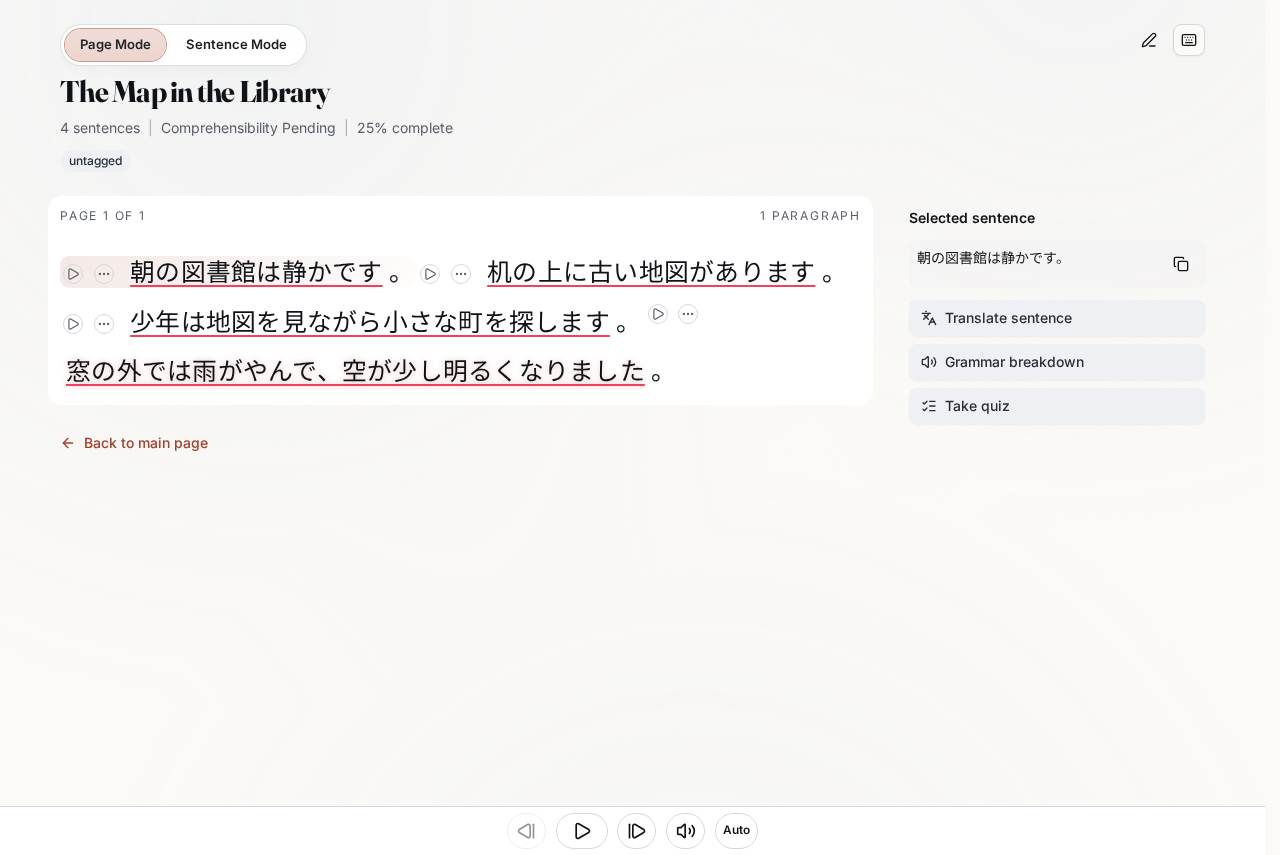
In page mode, Valo Reader shows several sentences or paragraphs at once. Use the previous and next page buttons, or the page pills, to move through longer stories. Tapping a word opens a word details popover or dialog, depending on screen size. On larger screens it appears beside the word; on mobile it opens as a bottom sheet. If you tap a word in another sentence, page mode focuses that sentence first so the details stay connected to the right context. This mode works well for:
- Reading sessions where comprehension and flow matter most
- Reviewing material you have already studied in sentence mode
- Content with dense paragraphs where sentence-level isolation would break the rhythm
Page mode remembers your current page between sessions, so you can close the reader and return to the same chunk of the story.
Sentence mode
Sentence mode focuses on one sentence at a time, presenting it prominently in the reader. This is the mode to use when you want to study every word, listen to audio sentence by sentence, or use keyboard shortcuts to navigate precisely.
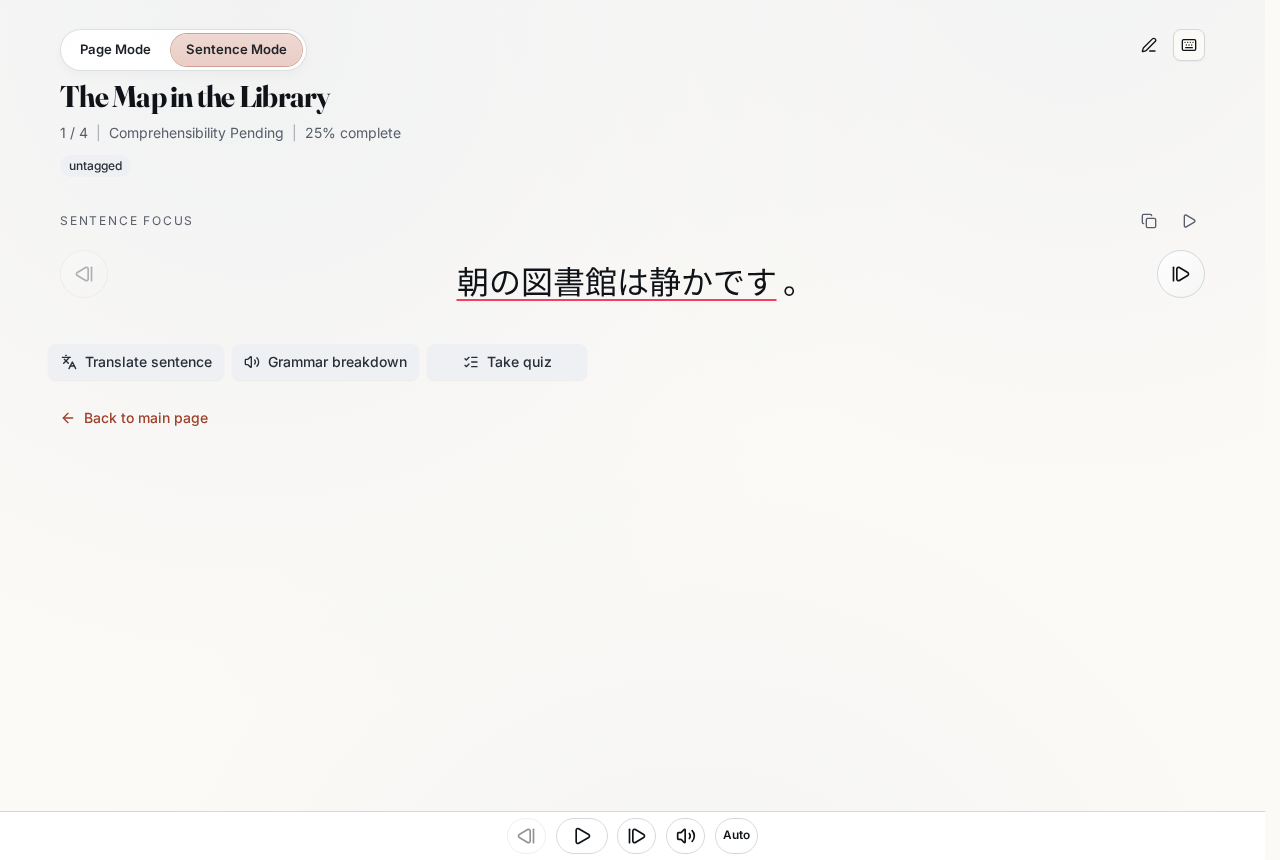
In sentence mode:
- The current sentence is shown in an enlarged, focused view.
- Remaining sentences in the visible chunk are shown below for context.
- Audio playback, if available, aligns to the current sentence boundary.
- Keyboard shortcuts (next, previous, play audio) map naturally to sentence-level actions.
Sentence mode is particularly effective for:
- First-pass reading of challenging material
- Audio-driven study where you listen and read along
- Quizzing yourself sentence by sentence
- Using AI translation and grammar features at the sentence level
Switching modes
Use the reader header controls to toggle between modes. The switch is instantaneous — no data is lost, and your reading position carries over to the matching sentence or page. Your mode preference is remembered across sessions.
Choosing a mode for your session
There is no wrong choice. Many readers start a new story in sentence mode to work through difficult passages, then switch to page mode for review or when the language feels more natural. Experiment with both to see which matches your study style for the current material.
See also
- Audio and subtitle cues — how audio navigation interacts with each mode
- Reader study features overview — quizzes, translations, and grammar tools available in both modes